Is there way to modify the default Exclusive-Edit mode when opening a module to Read-Only mode? The aim is to prevent blocking the module for other users in case they need to edit.
Modifying the access rights it is not an option. The users should be able to write. They would open the module as Read-Only (default), and switch to Exclusive-Edit if they want to edit.
My original idea was a pre-open module trigger, but researching a little I am afraid it will not work. And triggers should be used wisely...
I have not found anything related to this issue at the developerworks forums, neither the manual.
Is it something very simple that I am missing? Or, is it such a bad idea I should not even try it? Any ideas?
Regards
Blanca López
B.Lopez - Thu Mar 12 12:04:33 EDT 2015
Re: Default open module Read-Only mode
EHcnck - Thu Mar 12 12:39:04 EDT 2015
"C:\Program Files (x86)\IBM\Rational\DOORS\9.3\bin\doors.exe" -o r -O r -d 36677@x.x.x.x
Re: Default open module Read-Only mode
Mathias Mamsch - Thu Mar 12 13:08:44 EDT 2015
EHcnck - Thu Mar 12 12:39:04 EDT 2015
"C:\Program Files (x86)\IBM\Rational\DOORS\9.3\bin\doors.exe" -o r -O r -d 36677@x.x.x.x
To make this correct short answer a little bit more verbose:
-o (or -defopenmode) is the parameter for defining how a module should be opened by default.
-O (or -defopenlinkmode) is the parameter for defining how a link module should be opened by default.
Like with addins and projectaddins, you can specify these settings also in the registry. And of course if you plan to deploy this setting automatically to each users computer, you can also use DXL to set the corresponding registry values.
Regards, Mathias
Re: Default open module Read-Only mode
B.Lopez - Fri Mar 13 06:37:05 EDT 2015
EHcnck - Thu Mar 12 12:39:04 EDT 2015
"C:\Program Files (x86)\IBM\Rational\DOORS\9.3\bin\doors.exe" -o r -O r -d 36677@x.x.x.x
Thanks a lot for the quick response!
It is even more simple than I suspected...
Regards, Blanca López
Re: Default open module Read-Only mode
smarti.sj - Mon Mar 16 10:54:22 EDT 2015
B.Lopez - Fri Mar 13 06:37:05 EDT 2015
Thanks a lot for the quick response!
It is even more simple than I suspected...
Regards, Blanca López
The -O is actually defines how a formal module will be opened when opened by traversing a link
Re: Default open module Read-Only mode
llandale - Mon Mar 23 18:28:27 EDT 2015
Put it in the Registry. Get everybody to run this once per user per PC:
setenv("DOORSDEFOPENLINKMODE","READ_ONLY")
setenv("DOORSDEFOPENMODE", "READ_ONLY")
The "HKey_Current_User" area if the registry is updated.
The 1st will cause a module to open Read when it is double clicked upon in the Explorer.
The 2nd will cause a module to open Read when you follow a link to it. This, BTW, upsets CPS a little and you may have to change open modes to "Share" manually at times; such as when applying CPs.
Folks who want Shared or Edit can do so mindfully, right click on module to see the open menu; or cnt.-E for Edit. They don't have to open and then switch modes; although they can.
-Louie
Actually, I have a big-brother trigger script that forces the above on everybody.
Re: Default open module Read-Only mode
VladBorkovec - Wed Mar 25 09:33:40 EDT 2015
Mathias Mamsch - Thu Mar 12 13:08:44 EDT 2015
To make this correct short answer a little bit more verbose:
-o (or -defopenmode) is the parameter for defining how a module should be opened by default.
-O (or -defopenlinkmode) is the parameter for defining how a link module should be opened by default.
Like with addins and projectaddins, you can specify these settings also in the registry. And of course if you plan to deploy this setting automatically to each users computer, you can also use DXL to set the corresponding registry values.
Regards, Mathias
How can you make this change via DXL? I would like to make this change for all users in our database, but it could be quite long-winded for our IT department to add this suffix to every individual's registry
Is it possible to make everything open in read-only for everyone using DXL? This would be a lot more efficient if so
Thanks
Vlad
Re: Default open module Read-Only mode
Chris Annal - Fri Jun 26 10:22:20 EDT 2015
B.Lopez - Fri Mar 13 06:37:05 EDT 2015
Thanks a lot for the quick response!
It is even more simple than I suspected...
Regards, Blanca López
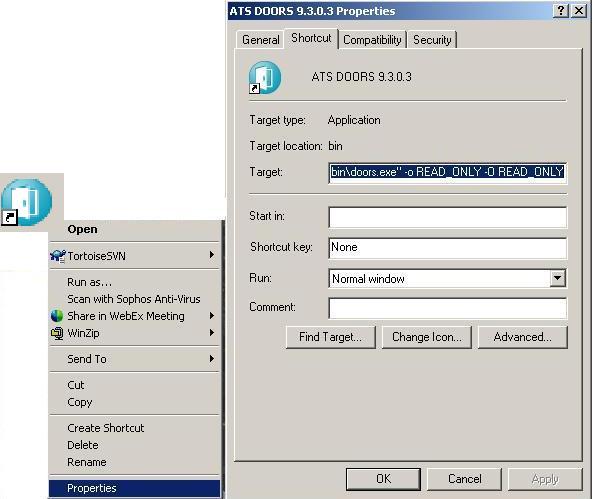
If you want an even simpler approach, this can be accomplished just by modifying the DOORS Desktop icon. To change the way DOORS opens modules, just add the following to the Target Path of your DOORS Desktop icon:
-o READ_ONLY -O READ_ONLY
Right-click on the icon and choose "Properties", then just add the above at the very end of the "Target" path (see below)